If you are missing messages or your group message are not functioning like they were BEFORE the update here’ are some fixes to try:
When the Mudita Kompakt installs an OS update and reboots, it often forces a carrier network settings refresh. This means that if a user previously went in and manually fixed their APN settings to get group texts working, the 1.5.0 update likely wiped out their manual fixes and restored the carrier’s default profile.
Major carriers (like T-Mobile, AT&T, and their MVNOs) include advanced messaging tags like rcs or xcap in their default APN profiles. Because the Kompakt does not support these protocols, having those tags instantly breaks MMS (group texts).
You can absolutely tell them to contact support, but providing them with a quick checklist on the forum first will likely solve the problem for most users and save our support team from a flood of tickets.
1. Check for the APN Update Glitch
This is the most likely culprit after an OS update. Users need to verify that the update didn’t inject incompatible tags back into their network profile.
- Go to Settings → Network & Internet → Mobile network → Advanced → Access Point Names.
- Tap the active carrier profile.
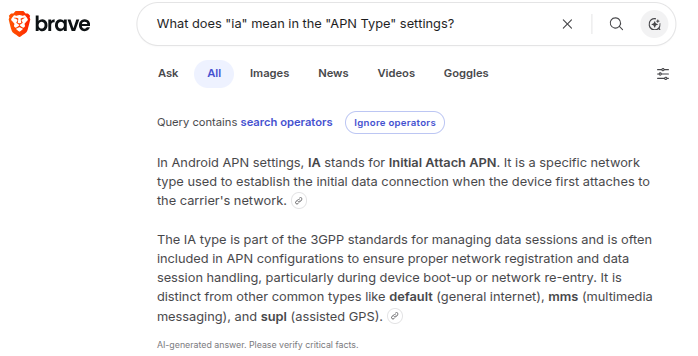
- Scroll down to APN Type.
- Ensure the text strictly says:
default,mms,supl - If tags like
rcsorxcaphave reappeared, users must delete them, tap the three dots in the top right corner, and press Save.
2. Verify Mobile Data & MMS App Settings
Group texts (MMS) are small file downloads and cannot be processed over Wi-Fi alone; they strictly require an active cellular data connection.
- Mobile Data: Go to Settings → Network & Internet → Mobile network and ensure Mobile data is toggled ON.
- App Settings: Open the Messages app, tap the three dots in the top right, go to Settings → SIM 1 (or whichever SIM is active), and ensure Download MMS content is toggled ON.
3. The Physical Modem Reset (SIM Pull)
If the APN is correct, the internal modem might just be “stuck” trying to re-establish a handshake with the cell tower after the 1.5.0 reboot. A physical reset forces a clean connection:
- Turn Airplane Mode ON.
- Power the phone completely off.
- Remove the SIM card from the tray.
- Power the phone back on without the SIM card inside.
- Turn Airplane Mode OFF.
- Reinsert the SIM card and let it establish a brand-new connection to the network.