@wander Just sent it!
For the rest: This will be updated on v0.3 release, I just want to fix some more bugs until next release.
@purejoy2408 That is a very good point, however the accessibility permission has been removed on last update so the keymapper doesn’t work for new downlaods, but Urszula said it was just a bug so they’ll be fixing it.
Also a reminder you can set the brightness with other gestures like swipe left/right or tap on clock, date, quote
@gezimos Thanks for all this work. I’m now back to my Mudita Kompakt because your launcher fixes some inconveniences I had. Now Mudita just needs to fix the issue with the call/reject button sensitivity. (I placed the phone in my pocket with a cardboard covering the screen. Hopefully that works)
Maybe I missed it, but it looks like missed call notifications don’t work? I see on the lock screen that I missed a call, but inkOS doesn’t show me any asterisk next to Phone or a text underneath. The notification does appear in the notification panel you built (but it just says ‘notification received’ without detail).
That is correct. The Mudita Phone app handles notifications through a closed channel that is not available to 3rd party apps. The mudita phone sends an empty notification in the system, doesn’t say Incoming/Missed or anything like that publicly.
So the only solution was to have a fallback for empty notifications that’s why you see “Notification received”. Couldn’t think of a better phrase to use because there might be other apps that send empty notifications
You don’t see Mudita Phone notification in home notifications because those are cleared automatically from the system. In the “Letters” page all notifications are cached so that’s why you get the “Notification received” even though the Mudita system has deleted it automatically after the phone stopped ringing.
It works normally in other Android phones because they use proper standard notifications for the Phone app. This was all I could do and I spent a lot of hours on this problem but sadly it is out of my control.
@gezimos Indeed I noticed the miss call doesn’t appear in other third party notification apps either.
I have not spent hours on the problem so forgive me this idea:
You do receive temporarily a ‘notification’ of unknown nature, right? It disappears but you did cache it.
When inkOS cached a new notification from phone => show asterisk
Users clicks on Phone app through inkOS => asterisk disappears, assumption is user has seen missed call.
Maybe inkOS could even mention ‘missed call’ because what other case is there? Call answered or rejected doesn’t yield a notification, I think?
@nilss I had already done that, but I removed the caching because it wasn’t working properly and was interfering with the other notifications. It sometimes wasn’t saving the notification and sometimes wouldn’t remove it properly resulting in cached notifications for other apps.
That’s why I made the decision that home notifications zero caching, letter notifications are fully cached (unless you click the toggle in settings).
There are more notifications that phone apps can send, “incoming call” voice mail etc.
Feel free to edit the notificationmanager.kt. notificationservice, notificationbadgeutil to adjust the notifications to your needs. But I am not going to waste more time to something that should use standard notifications
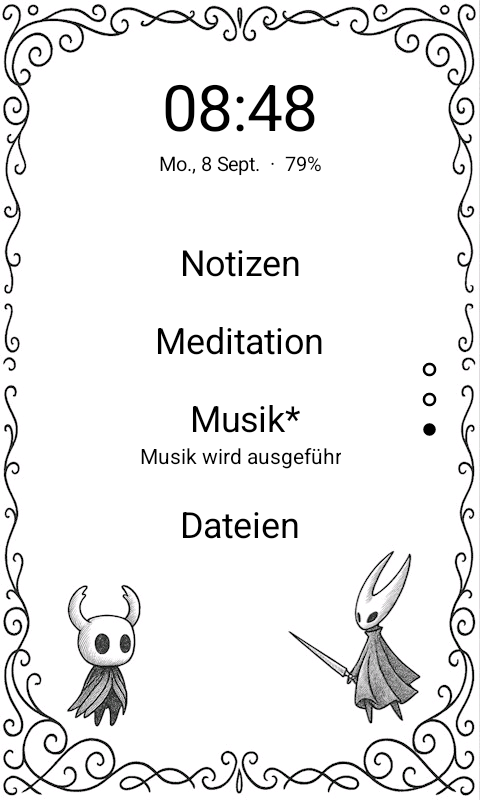
Hey is the figure at the bottom the “quote widget” that you changed the font ? And if yes where did you find the setting to change the font of the quote please ? thx
Hi, that figure is the screen background (Home image), located in the quote area. The quote is just those dots. You can find the quote settings at: Home/Show quote-quote text.
@alexand3r You can also add Emojis, if you use a third-party keyboard you can access all emojis and they’re flat black so they look like icons. For example I have a crow on mine
You technically could add an icon font to add other stuff
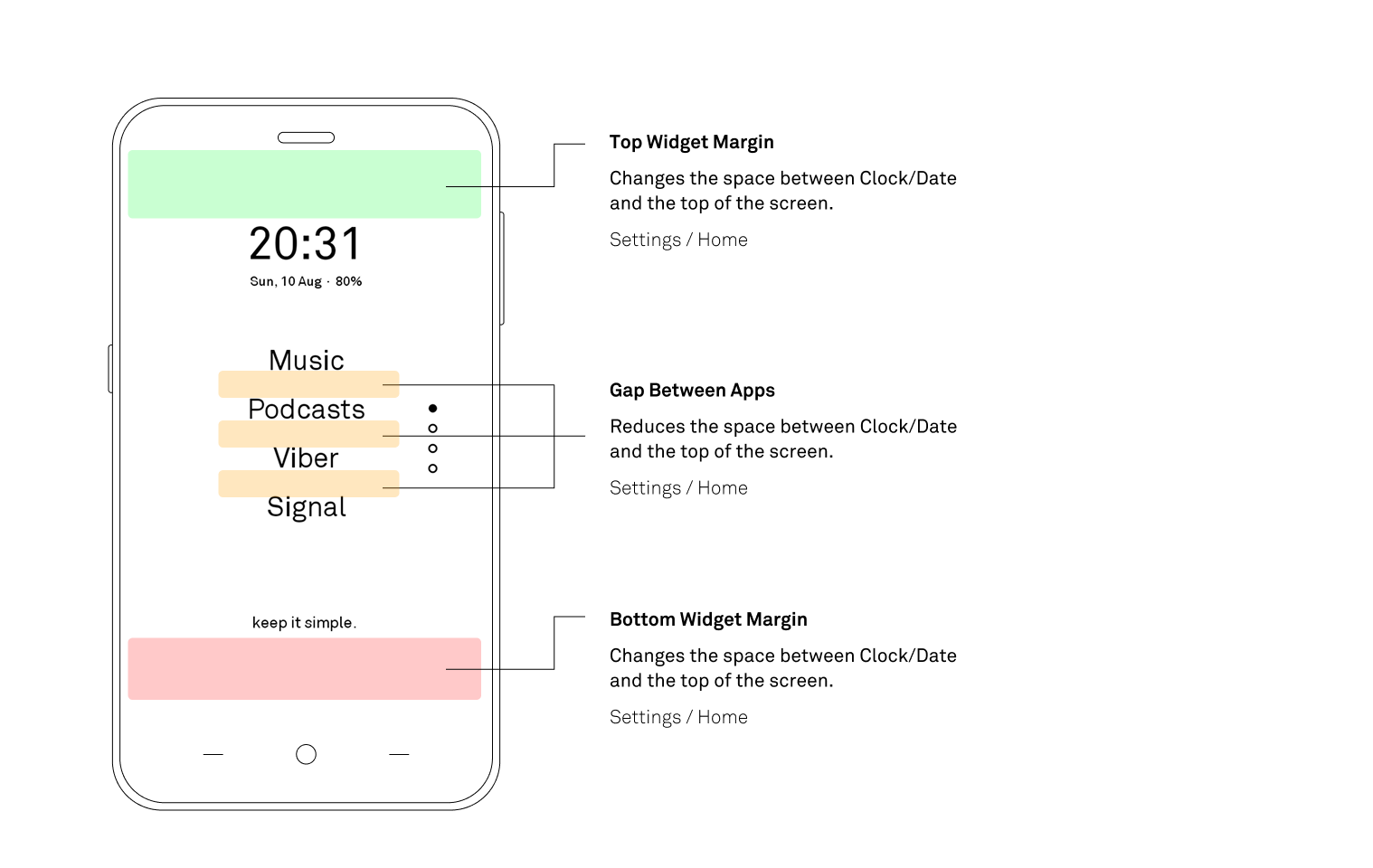
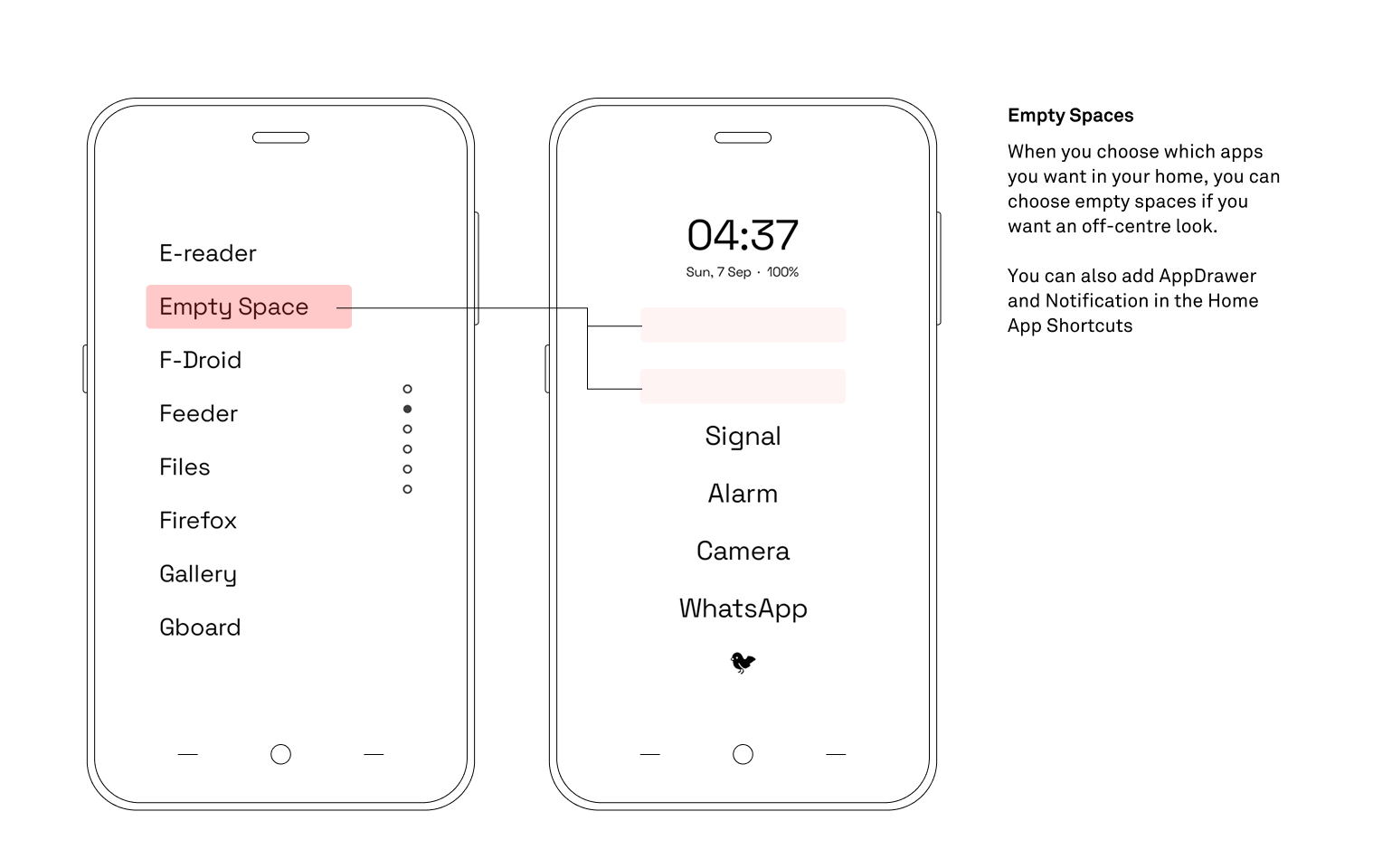
I saw some users having issues with size/spacing, so wanted to clarify the margins at top and bottom and also let users know they can set EmptySpaces if they want an off-centre look or a space between apps.
You can also add the AppDrawer in the home shortcuts if you don’t want it to be set as a swipe-right (like how it is by default). Or notifications which is set as swipe left.
Also don’t forget the System shortcuts in extras, which allow you to open some hidden activities for which you need activity launcher. Like Data Usage, App Notification settings, Memory Usage, Mobile Network, Settings Search etc.
Also in the Appdrawer you can rename your apps for example AntennaPod → Podcasts, Spotify → Music etc.
Hi! Just tried the new version of your launcher and it keeps getting better and better! Thank you for your hard work! @gezimos
For some reason the music playing widget does not work on my end, however it worked in version 0.1. Not sure if I’m missing something. I’m playing audio through the stock app and I only see the “Now playing” asterisk and “Music App is running” under the app name. Maybe you have an idea?
Also, for the chat label notification: I only see “Molly: Molly: Molly:” and not the senders name or message content. Maybe this is related? I don’t know.
@gezimos love the new update!!! it makes the kompakt so much better! great job
I have a question- Im using antenna pod and I used to have the name of the episode under the app at my Home Screen (like music or notification) but it doesn’t show anymore, do you know how can I fix it?
There was no Music Playing Widget in v0.1. If you’re thinking of the audio name label that appears under the audio app (music, podcast or others) then, nothing has changed about that.
The default Mudita music app doesn’t send any notifications so It won’t be able to show the name. You probably have used a different app before.
Check Settings / Notifications / Chat / Sender - Group - Message.
Anyway inkOS only shows the Notifications how they appear, and some apps might send their own notifications that can be summaries or other notifications that are not related with messages. I’ve managed to filter some summaries for popular apps like Signal, Whatsapp, Viber but there are some that get through anyway.
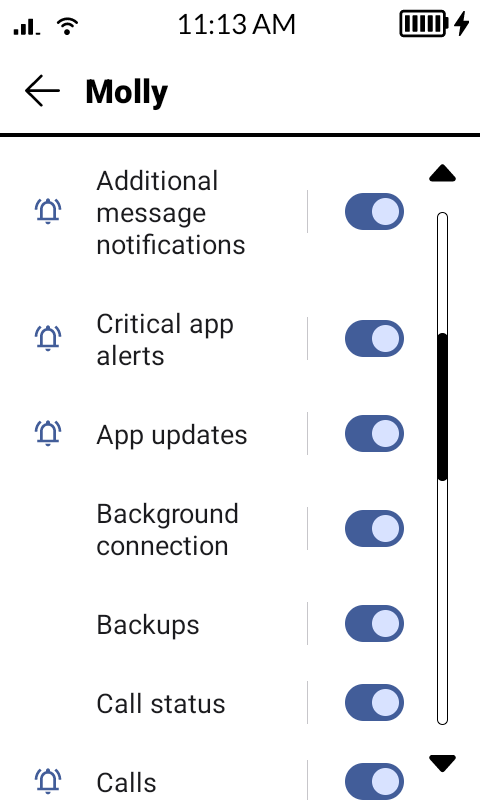
What you can do is go to Settings / Extras / System Shortcuts and activate App Notifications and Notification Log (hidden setting activities). Or do it through activity launcher app if you have it. In App drawer / Notification log { you should be able to see how Molly notifications that u are receiving like Molly: Molly: Molly: appear and take a screenshot and share it with me so I can understand if there’s some type of filtering I can add to remove these notifications. (Molly: Molly: Molly: one)
Then go to AppNotifications { shortcut in the Appdrawer, click on All apps on the top and find Molly.
These might not appear the first time so go back and enter the Molly settings again and start playing with toggles that are not related to chat/call that might be causing the “Molly: Molly: Molly” notification, they should be under “Other”.
Settings / Notifications / MediaPlaying name see if have the toggles switched on “media playing asterisk and media playing name”.
Then see if you’re using the Home notifications Allowlist:
If you have any apps on it gets activated so make sure you have the music/podcast app in there
If there are no apps it means it allows all notifications
Also depends what app are you using, the default Mudita Music app doesn’t give a notification so you won’t be able to use it. For other apps I haven’t had a problem including AntennaPod
Thanks for the update, made an already incredible launcher even better.
Just one question, I really like using the VolumeKey navigation to scroll from page to page on my home screen apps, however I’ve had to turn it off due a slight inconvenience. If i am playing something in the background such as music/podcast and i want to turn down the volume, instead of adjusting the volume, it would scroll from page to page on the home app. Is there a workaround for this that doesn’t involve going into the music app and adjusting the volume from there?
Maybe in a future update you can add a volume bar in the audio widget, if that would work.
Understandable! For me it took a few weeks to get used to this
The only workaround I have is this:
Hold power button until the power menu comes out, then it recognized the screen as system window so you can actually press the volume up and down.
Or if they fix the accessibility permission in next Mudita OS update you can use Keymapper to Map volume so on long press or double tap it would work as a volume, and in up and down you can leave it for pages
These are the only solutions that I can think off right now, but in future updates I will see how can I implement a feature like dragging on the widget or something to change the volume
Thanks for looking into it and providing the workaround. I’ll give it a try for now until there’s a more permanent solution such as the volume on audio widget or keymapper sounds good