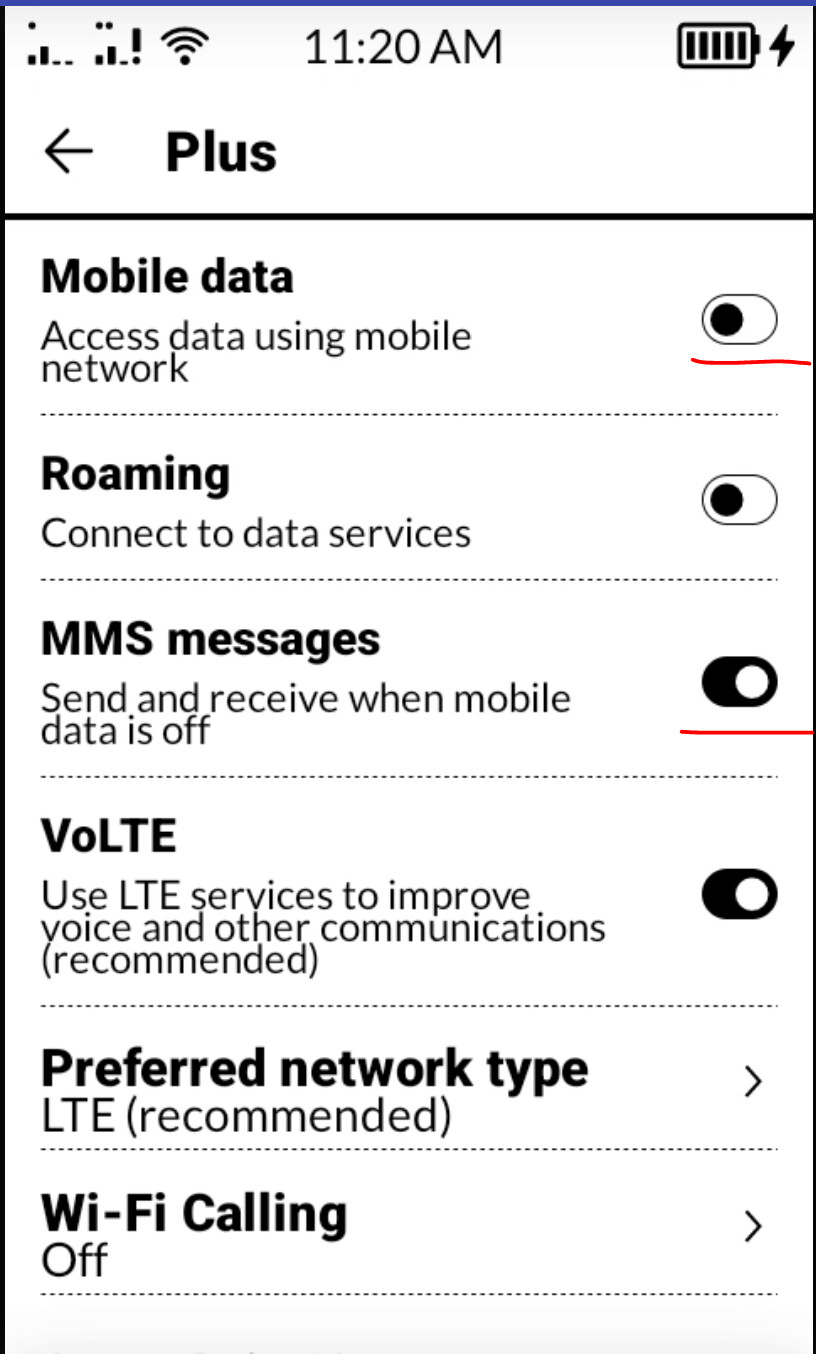
@trianna: Brave AI generated this answer for me in response to a “photo in MMS message: get a “couldn’t download” with the file size and expiration date” prompt:
This error typically occurs because mobile data is disabled , auto-download settings are misconfigured, or there is insufficient storage on the device. Since MMS messages rely on the carrier’s data network rather than Wi-Fi, the phone cannot retrieve the attachment if the cellular data path is blocked or corrupted.
Common Causes and Fixes
- Enable Mobile Data : MMS requires an active cellular data connection. Ensure Mobile Data is turned on in your quick settings, even if you are connected to Wi-Fi.
- Toggle Auto-Retrieve : Go to your Messaging App Settings and check the Auto-download MMS or Auto-retrieve option. Try turning it off, restarting the phone, and then turning it back on to reset the service.
- Clear App Cache : Corrupted temporary files can block downloads. Navigate to Settings > Apps > Messages > Storage and select Clear Cache (or Clear Data if necessary).
- Reset APN Settings : Incorrect Access Point Names (APN) settings often cause this error. Go to Settings > Mobile Networks > Access Point Names and select Reset to Default .
- Check Storage Space : If your phone is full, it cannot save the attachment. Delete old messages or free up space in Settings > Storage .
If these steps fail, the issue may be related to carrier-specific file size limits or a provisioning error, requiring you to contact your mobile service provider.
The error message displaying a file size and expiration date indicates that your phone received a notification from the carrier’s MMSC (Multimedia Messaging Service Center) but failed to establish a data connection to retrieve the actual content before the server timed out. The “expiration date” is the deadline set by the carrier for how long they will hold the file; once this passes, the server deletes the content, resulting in the “couldn’t download” status.
Why the Expiration Date Appears
When an MMS is sent, the carrier does not push the image directly to your phone. Instead, they send a small notification containing the sender’s info, file size, and a retrieval link. Your phone must then use mobile data to fetch the file from that link. If your phone cannot connect to the MMSC due to network settings, data being off, or a software glitch, the download stalls. The timestamp you see is simply the server-side retention limit, often ranging from a few hours to three days depending on the carrier.
Detailed Troubleshooting Steps
1. Force Mobile Data Connection
MMS strictly requires a cellular data connection and generally cannot download over Wi-Fi alone unless “Wi-Fi Calling” is properly configured with your carrier. Even if you have unlimited Wi-Fi, the phone’s radio must be authorized to use the LTE/5G data channel for MMS.
- Action : Turn OFF Wi-Fi temporarily and ensure Mobile Data is ON. Tap the download button again. If it works, the issue is a conflict between your Wi-Fi calling settings and the carrier network.
2. Reset APN Settings (Most Common Fix)
The Access Point Name (APN) acts as the gateway between your carrier’s network and the internet. If these settings are corrupted or missing the specific “MMSC” URL, the phone knows a message is waiting (hence the size/date) but doesn’t know where to go to get it.
- Action : Go to Settings > Network & Internet (or Connections) > Mobile Network > Access Point Names . Tap the menu (three dots) and select Reset to Default . Restart your phone immediately after.
3. Toggle Auto-Retrieve and Clear Cache
Sometimes the messaging app’s internal download manager gets stuck in a loop, failing to initiate the handshake with the server.
- Action : Open your Messages App > Settings . Turn OFF “Auto-download MMS” (or Auto-retrieve). Force stop the app, then go to Settings > Apps > Messages > Storage and tap Clear Cache . Re-open the app, turn Auto-download back ON , and try again.
4. Check for File Size Limits
Carriers impose strict file size limits on MMS (often between 300KB and 1MB). If the sender attempted to send a high-resolution photo or video that exceeds this limit, the carrier may reject the download request, causing the client to time out and show the expiration error.
- Action : Ask the sender to compress the image or send it via a data-based alternative like WhatsApp, email, or RCS (Chat features) if both parties support it.
5. SIM Card and Network Refresh
In rare cases, the provisioning data on the SIM card regarding MMS services becomes desynchronized.
- Action : Toggle Airplane Mode on for 30 seconds and off. If that fails, power down, remove the SIM card, clean the contacts gently, and reinsert it. This forces the phone to re-register with the carrier’s MMSC.