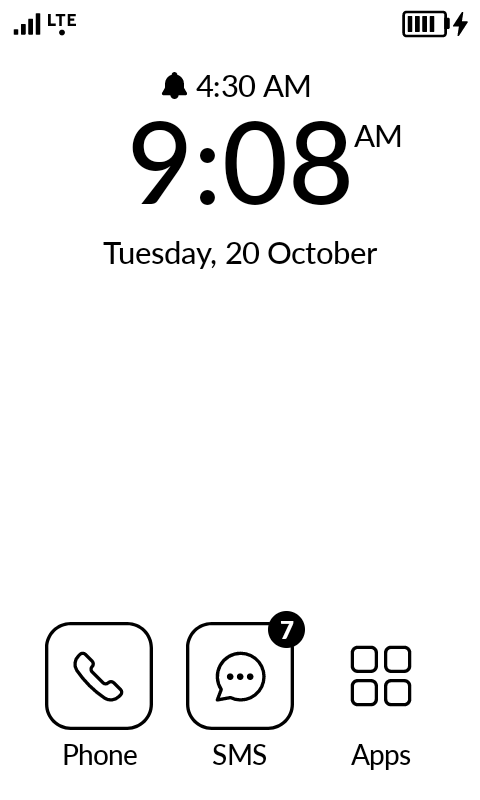
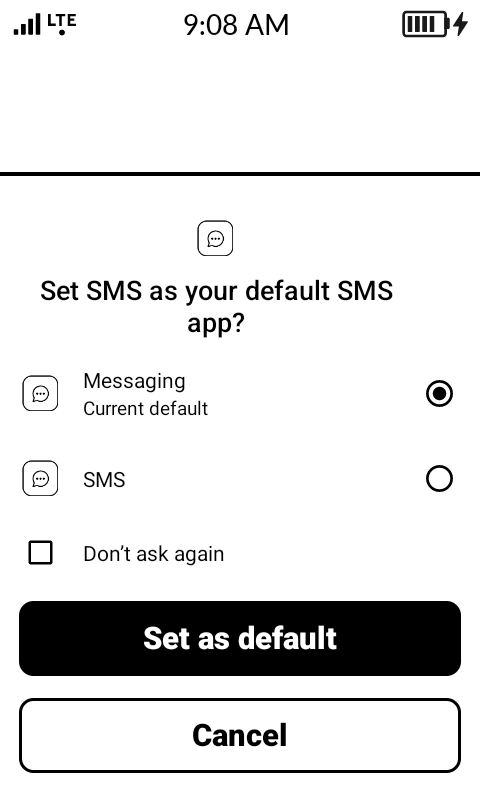
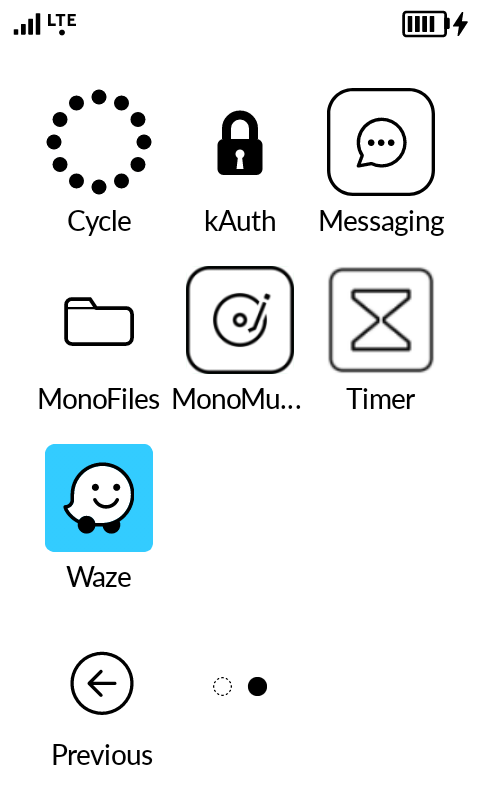
…which I often do because it’s the natural thing to tap on. SO then I have to go back out of this screen and swipe right twice to get the messaging app in my list of side-loaded apps here:
…which incidentally doesn’t show a notification number.
Is there any way to make it so that the messaging app takes the place of the SMS app on the “Home” screen (if that’s what it’s called) so we don’t have to swipe right twice?
Review for version 1.33.10
Author’s rating: ★★★★★ · Author of this review
Sadly no: Mudita’s home screen opens its own SMS app by name, and no other app can take that button. The screen you get is Android asking whether to switch back. The count works because it reads the phone’s shared message store, which Messaging writes to.
@wander, I think I found another bug. When I tap on a spam message and then tap on “Block,” it seems like nothing happens. When I back out of the message it is gone, so it is being blocked, but when inside the message after tapping “block” there is no indication that the message was blocked. No dialogue. The message doesn’t close. It’s only after leaving the message that is evident that it was blocked.
Review for version 1.33.10
Author’s rating: ★★★★★ · Author of this review
Good catch, thank you. The block was going through, but nothing on screen said so. In 1.34.8, blocking from inside a conversation closes it and takes you back to the list, so you can see it’s gone. If the block can’t be saved, the chat stays open and says so.
I love this app! It adds so much functionality to Kompakt! Thank you!
Quick question: I’m trying to set up Desktop Sync and have it toggled on. When I press Show Link, I get a pop-up message: “Desktop Sync is on, but this phone has no usable addresses yet.”
I installed the Messaging app a few days ago, and it works for everything else. Any suggestions on whether I need to change any other settings to enable desktop sync?
Review for version 1.33.10
Author’s rating: ★★★★★ · Author of this review
Thanks for trying Desktop Sync. That message means the phone has no address it is willing to hand out, and the cause is almost certainly one setting.
“VPN only” (Settings, Desktop Sync, a few rows below Show link) is on by default. With it on, the phone only shows addresses that belong to a VPN such as Tailscale or ZeroTier, and refuses every connection that does not arrive through one. On plain home Wi-Fi with no VPN there is nothing to show, so you get exactly that pop-up.
Two ways forward:
Switch “VPN only” off. Show link will then list the phone’s Wi-Fi address (labelled “Wi-Fi”), and your computer can open it while on the same network. Everything still needs the token in the link, but while it is off anyone else on that Wi-Fi can reach the page, and the traffic is plain HTTP. At home that is a modest risk; on a shared or public network, leave it on.
Or keep it on and install Tailscale on the phone and the computer. That is the safer route, and it works away from home too.
Let me know if the link still does not appear after that.
Thank you for your quick reply and information. Desktop Sync with the Messaging app works like a charm with Tailscale. This is a fantastic way to access messages on a desktop!
I am looking into using this, mainly, or only for signal. I have it already installed on the kompakt with all my messages and history. So if I set this app to use Signal, will I loose all my conversations?
Review for version 1.33.10
Author’s rating: ★★★★★ · Author of this review
@moritz_ger thank you for asking before trying it. No, you won’t lose anything. Messaging doesn’t replace the Signal app or touch it: it links to your Signal account as an extra device, the way Signal Desktop does, so Signal and all its conversations stay exactly as they are.
What Messaging won’t have is your old history. Signal gives a linked device nothing older than the day it was linked, so threads there start empty. Two ways to handle that: keep the Signal app for the old chats (don’t uninstall it or unregister the number), or bring history in from a Signal Desktop export, in Messaging’s Signal settings under Chat history, Bring history in. The export folder is the one holding main.jsonl.
Hey Wander, thanks for your reply. I already have signal on my kompakt registered. In that case you can not link it, as you don’t have another device to scan a QR-code.
Also just a short feedback on a design problem: going the other route and registering your number to signal, I ran into the next problem. Messaging is set to be my default sms client. But to register the number, I have to receive a code. To do so, I need to go out of the whole menu to register the number to signal and copy the code. But then, going into the menu to register the number will set you back to the beginning of the process.
Nevermind, I found a workaround, albeit no the most elegant one. Show the QR-code for linking in the messaging app, take a screenshot. While doing this, have the kompakt connected to your laptop. Open the screenshot, open signal on your kompakt, go to “linked devices” and scan the QR image on your laptop.
Review for version 1.33.10
Author’s rating: ★★★★★ · Author of this review
@moritz_ger glad you found a way through, and thank you for the detail. Linking the desktop app is done from your Signal app, since that’s the phone holding the account: Settings, Linked devices, then the + button, and scan the code Signal Desktop shows. Messaging only links itself as an extra device, so it can’t do that step. The screenshot trick is a clever way around it.
And thanks for the note about the registration screen. Leaving it to read the code and finding it back at the start is a real problem, and I’m working on it.
I installed Tailscale and connected Supernote Manta. I entered the Tailscale link in a browser on Manta, hoping I could get something close to Desktop Sync, but the browser isn’t taking me to the Messaging app interface. Is that actually possible?
Review for version 1.33.10
Author’s rating: ★★★★★ · Author of this review
@moritz_ger Messaging 1.35.6 is out, and it has the two things you asked about.
Signing up with a phone number no longer starts from the beginning when you leave the app to read the SMS code. When you come back it is still on the code step, with your number and session kept, for ten minutes. Typing the code is still on you, of course.
It also adds a Linked devices screen with a way to link Signal Desktop from inside the app, so you no longer need another device for the QR code. I have not been able to try that one on a real device yet, so please tell me how it goes, and what it says if it does not work.
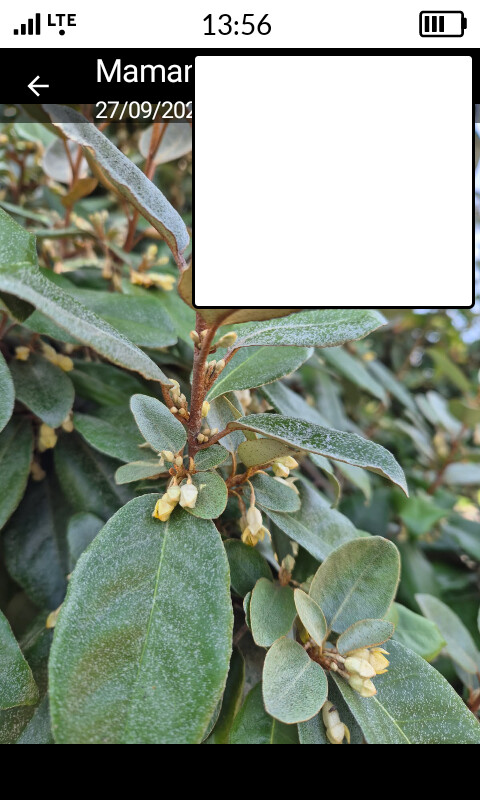
Hello, thank you very much for your work on developing these applications. I would like to report a minor bug that I have been experiencing for several versions now. When opening an image sent by someone, the menu in the top-right corner—indicated by three small dots—opens as a blank menu. (See the attached screenshots.)
Review for version 1.33.10
Author’s rating: ★★★★★ · Author of this review
Thank you for the report, and for the screenshots, which showed it exactly. The menu was not empty: its four items (Save to gallery, Share, Forward and Open externally) were there, but drawn in white on the white menu box.
Edit: Nevermind, maybe the problems I talked about are already changed? Because I figured out this time the notification came from a voice message being active in my audio player
An issue that I am sometimes having with the app is that I am shown a Notification on the messaging icon (through Katapult) but when I enter the app I cannot see where its coming from, as all conversations show as being read. In the past I think it was sometimes when someone reacted to a message of mine or when I got an SMS from a contact that I otherwise write on signal with. Would it be possible to make reactions also show as unread message when opening the app? or can you figure out another reason why thats happening?