Is there a way to side load apps but be able to change the app icon to match with the other apps? I don’t like how the side loaded apps look so dark with the rest of the icons, but it would be nice to have some other apps on it
5 Likes
I’m hoping this will be possible too. When I get my Kompakt I’ll be looking into ways this could be achieved… I’ve got some hacky technical ideas, but I suspect that it won’t be possible and would need an update from the Mudita team.
e.g. if there were a handful of common Mudita-like icons I could select to override the inbuilt icon of sideloaded apps ,that would be amazing!
3 Likes
I believe the dark icons for sideloaded apps is intentional. It portrays that it is not supported by Mudita, and it also helps you differentiate and isolate in case of any issues.
3 Likes
Color aside, I would like to not use icons and go to a complete text based app drawer.
4 Likes
I want my phone to just be a command line interface 
2 Likes
@somastudy Unfortunately, we don’t have any control over how third-party apps appear when sideloaded on Mudita Kompakt.
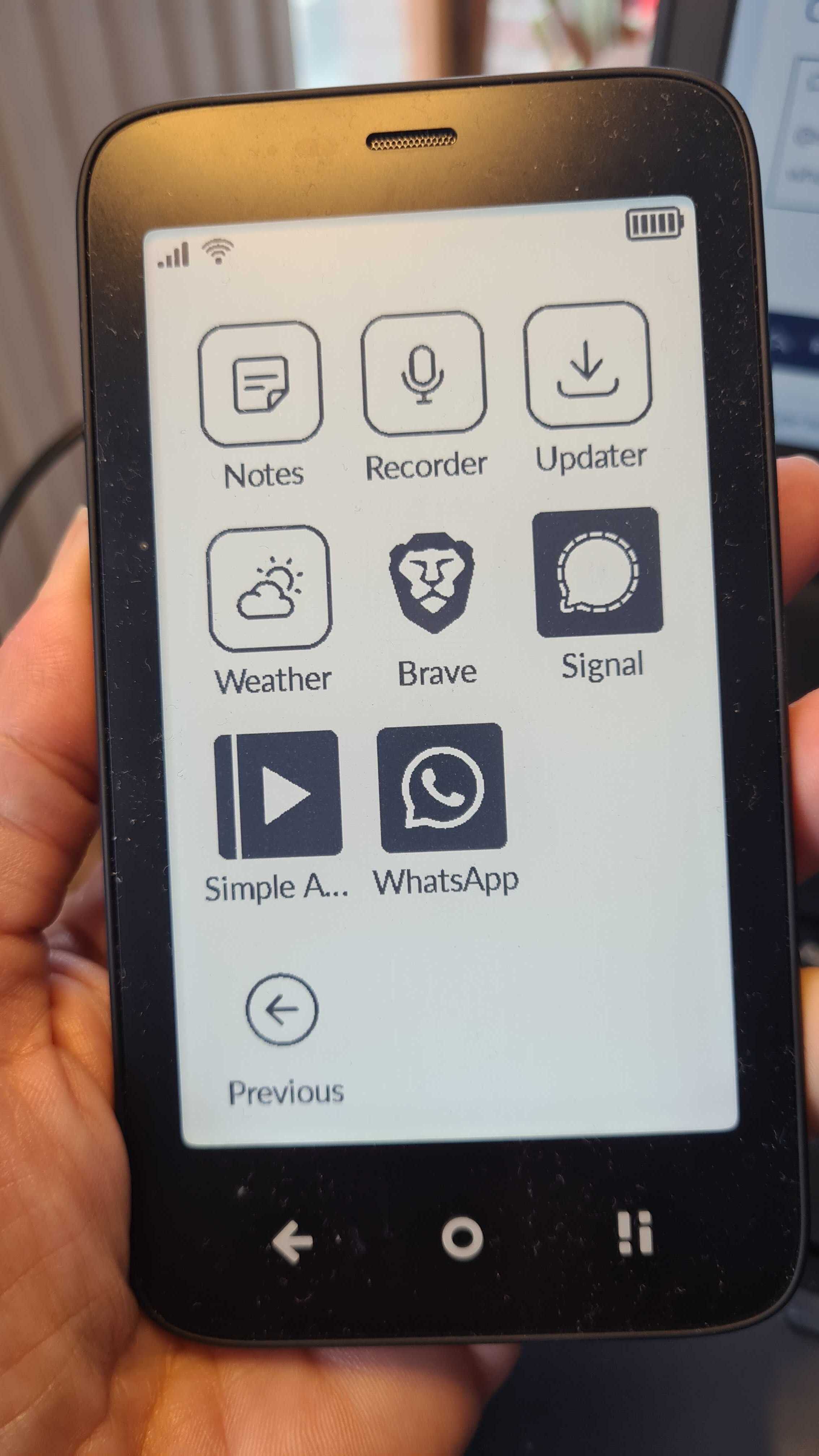
I do like how the BRAVE browser looks though. That’s the only exception. LOL
3 Likes
@urszula
It would be cool if your dev team could add the option to edit icons. Most of launchers all ow you to use an icon pack or just an image to replace icons. They can stop block default apps, but allow the users to change icons for sideloaded apps.
I’d be happy to create icon images for the most popular apps so other people can download them, and so your team doesn’t have to deal deal with requests.
7 Likes
I see that the development team was able to have icons for the apps they allowed. Is there any way to override the downloaded app icons? I’m not even sure if I will download apps because of this reason alone … but it would be nice to have the apps all organized and the same aesthetic.
1 Like
@gezimos Welcome to te Mudita Community! We are glad you’re here. I will pass this on to our team, however, I’m not sure that this could be changed.
The app developer sets the icon that’s displayed when you download and install the app. This icon is specified in the app’s code, and it’s usually stored in the app’s resources folder. So by default, what you see is what the developer designed.
There is a possibility to change an app’s icon, BUT not directly through our MuditaOS K. The operating system doesn’t let users manually change an app icon natively unless they are using a launcher- which is something that has been mentioned on the forum as a feature our community is looking for & I have passed it on to the team.
1 Like
Hi @urszula, thanks for your reply
I know it currently doesn’t support it, and I know it takes the default icons from the app.
But the launcher itself (it’s a separate app technically) can have the feature added since most Launchers free or paid ones support editing the icons. It’s a basic feature of all open-source launchers as well.
And it would help keeping the UI looking consistent even with a few side loaded apps. (which I know, you don’t endorse but people are going to do it anyway).
Thanks!
2 Likes
Where did you get the brave apk file?
1 Like
2 Likes
Could you use something like this? APK Editor Pro Online | Change Application Icon, Label, Package Name and more easily
I know this may prevent auto-updates? I’m not experienced with Android APK’s, so not too sure.
2 Likes
Good find, @james! Hopefully, this alert on that page will disappear soon:

1 Like
Hi how can I delete a side-loaded app?
1 Like
How did you install them? If using f-droid or aurora store you can uninstall them through there. If you did it using ADB then you need to use ADB uninstall commands with package name not the app name.
Easiest would be install a launcher that supports uninstalling like Nova Launcher.
1 Like
I installed through webadb services. I can not find the application folder on Kompakt, and in Manage Apps, there is no possibility to delete
1 Like
I’m gonna try to make it simple with commands:
Firs you need to run:
adb shell "pm list packages -f test”
Where you replace test with the name of the app that you have installed, or a keyword of it. It will search and give you a results if it finds a match. For example I added “insta” instead of “test” and it gave me package:/data/app/~~kTobwse8VI0TXBuxrecEHA==/com.instagram.android-m-iDggGod5_HMeZy9Fj-rQ==/base.apk=com.instagram.android
Which means the package name is com.instagram.android (only this part).
Then you type:
adb uninstall com.instagram.android
And it should say “success”.
I installed instagram just to show you this example. And mind you I did it with normal ADB platform tools not the web one, but it should work the same I think.
p.s If you sideload AuroraStore it shows the names of the packages under the title, and you should also be able to uninstall it from there (if it’s a play store app).
2 Likes
Thanks it worked perfectly
2 Likes
Just leaving a note in case someone else needs this. When using the web platform (Interactive Shell - Android Web Toolbox), instructions had to be slightly different for me:
To list all installed packages: pm list packages
To search whatsapp package: pm list packages whatsapp
To uninstall whatsapp: pm uninstall -k --user 0 com.whatsapp
1 Like