Funny enough, found a workaround for both issues I mentioned in my last post. Niagara works now! Here’s how to do it:
- Install Niagara Launcher normally
- Open it, read and accept the terms of use, and select your favorite apps to pin
- You now need to use a keyboard: either use
scrcpyor connect a USB or bluetooth keyboard to the Mudita Kompakt. Press the Tab key, and then press Enter. This effectively changes the current selection (app list) to select the greyed out Done button. By pressing Enter you are simulating a click on the button. - Set the launcher as default and you should be good to go!
After all these steps are completed, it appears that it is then possible to open Niagara Settings, allowing you to modify the settings to your personal taste. And I have tested rebooting a couple of times and settings do persist!
Note: it is not enough to set the launcher as default for sideloaded launchers to work, you also have to disable the mudita launcher from adb:
adb shell pm disable-user --user 0 com.mudita.launcher
Do not worry, you can always turn it back on with adb shell pm disable-user --user 1 com.mudita.launcher.
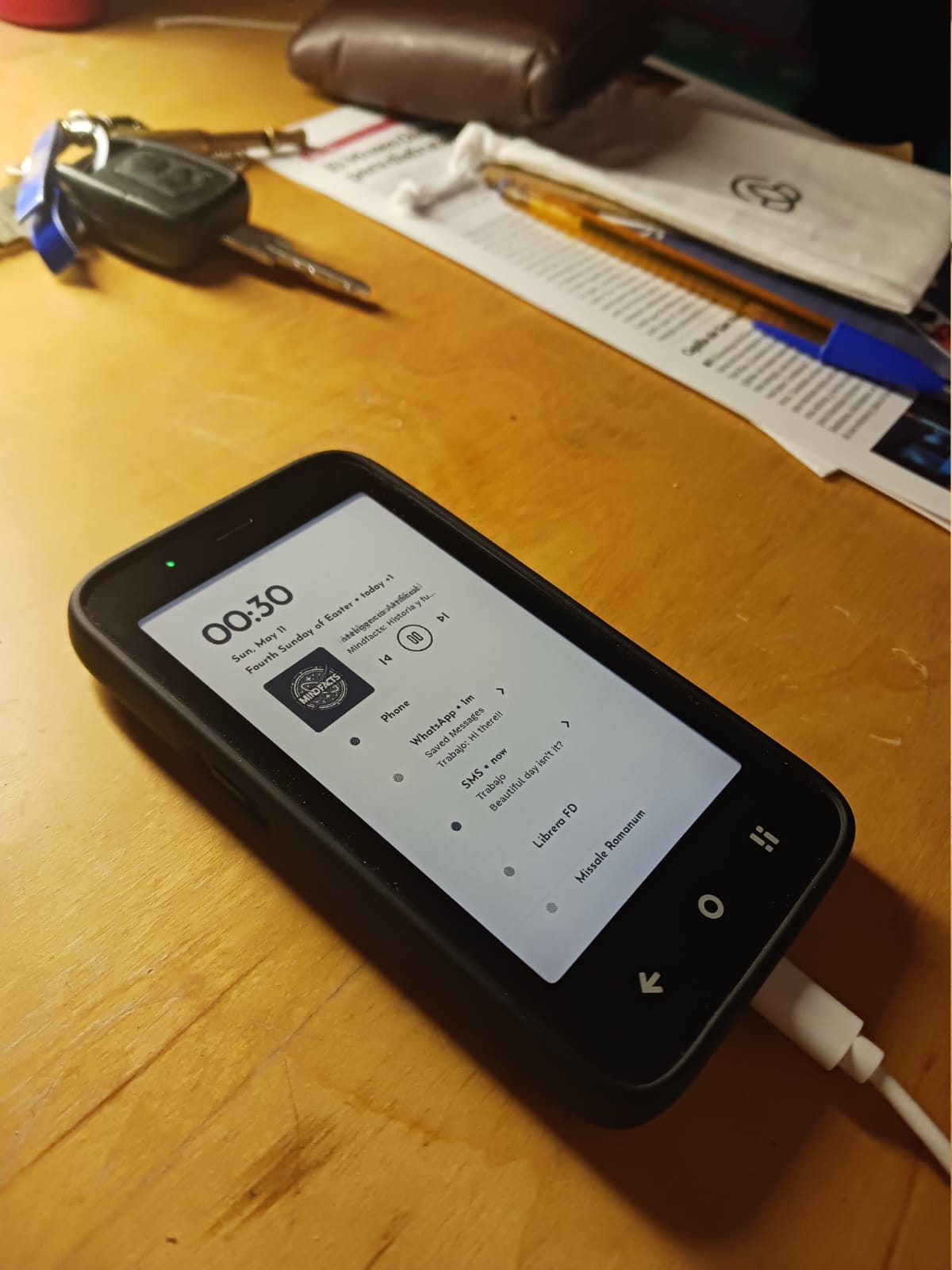
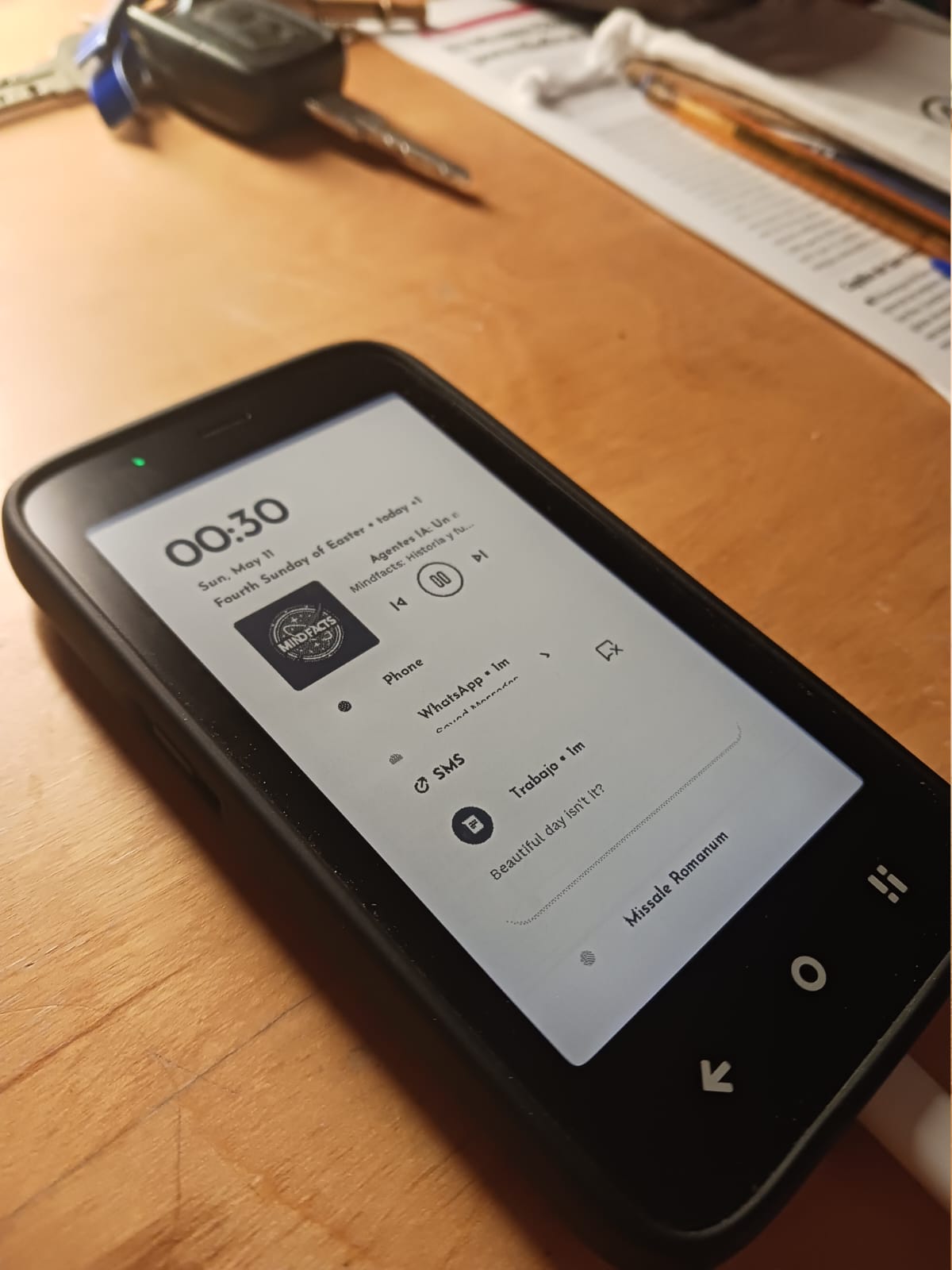
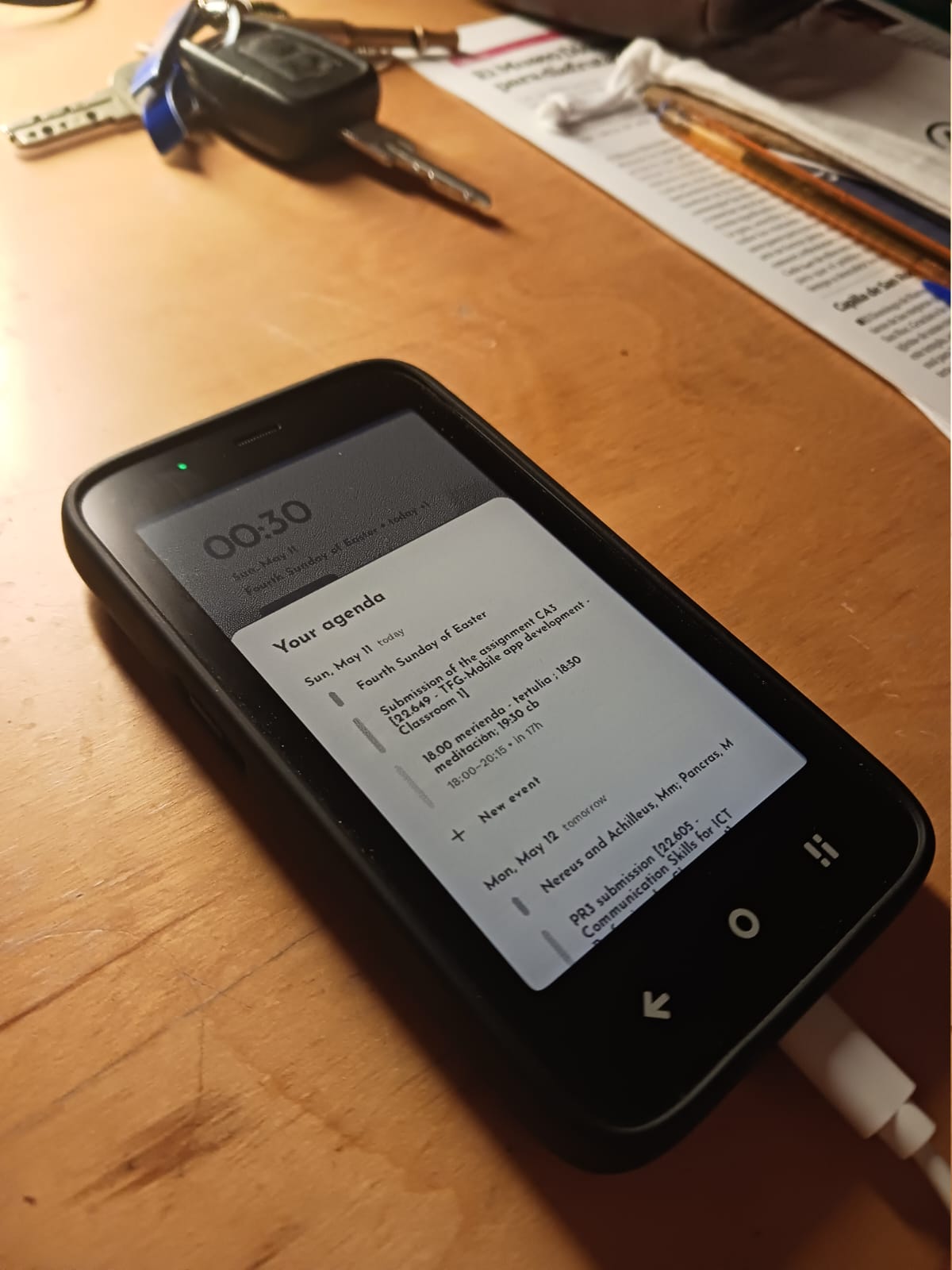
Here are a couple of sample images of the Launcher in action. A few cool features:
- Ability to change to Niagara Dots, which essentially turns it into a text-based launcher.
- Hide Unused apps and top bar
- See notification previews for any app (built-in or sideloaded), even for media playing in the background!
- See calendar events at a glance