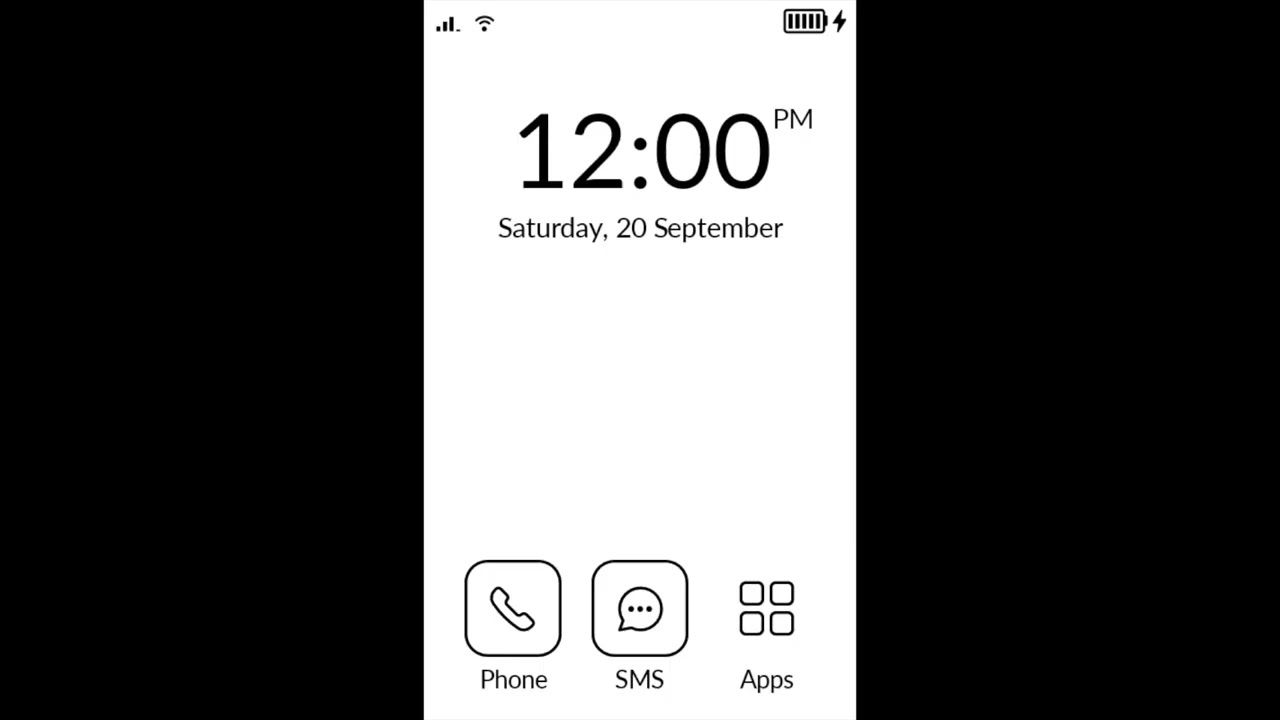
The thread about inkOs is getting so big, most due to the number of granulation to gezimos that it’s difficult to find the real relevant infos.
The nice pics of the screen in dark mode, the regular crash of the Mudita launcher makes me want to try it.
Installation
download from GitHub with the link given by gezimos
Install through the Mudita Center. It’s a breeze
Then you have to disable the Mudita launcher. You can do it with adb (app) or Webadb (in a navigator). I choose this second option.
In the system setting/developer options, allow the usb debugging. Connecting your Kompakt to webadb is a breeze.
on the top left, you should see your device. Clic on « connect ».
Then on the left, choose something with shell (sorry don’t remember the exact name but you should get a window like a Terminal)
then just type that
If you’re using webadb:
pm disable-user --user 0 com.mudita.launcher
if you’re using normal adb (in your desktop terminal)
just as it is written here and it will disable the Mudita launcher and let InkOs work.
If you want a nice wallpaper, on GitHub gezimos offer a few nice ones to download and then copy in the pictures folder of your Kompakt.
Then you have to configure.
Select the apps you want to be displayed.
After I choose the « black mode »
But I find the « status bar » useful and in « black mode » it stays white and it’s very hugly.
So I had the time twice. In the status bar and on the screen. So I deactivate the time showing. No matter, it as loosed the so practical access to alarm (one of the rare features that work properly on this phone)
I tried activating the E-Ink Mode but it refresh the screen every 2 seconds or so so I disabled again.
Now I have to explore more and re-read the whole thread to learn more.
I’ll let you know what I discovered.
I actually wanted to make a video how to do it but I’ve been busy. Plus I was hoping Mudita on the next update will allow third-party launchers without having to disable Mudita Launcher.
@urszula Since you guys allowed side-loading through Mudita Center which has made it very easy for users to install apps, it would be nice you allowed the normal android behavior of changing launchers. Currently the Mudita launcher still appears when you press the home button even if you’ve set a third party launcher as the default. Which is why people started disabling it via ADB.
I see that for a lot of inexperienced users the Terminal seems very intimidating. And I’m sure that some users like to try launchers for a few days then go back to Mudita one
So, first day with inkOs.
Having a nice wallpaper is great.
Access to camera direct on the Home Screen is wonderful.
The asterix notification on the apps concerned is a great feature too. But with Signal I have to go twice on the received message to get the asterix disappear. Not the case with sms.
Also set inkOs to have five app by screen so the five I use the most are on the Home Screen.
I’m reaching perfection. Just miss the contacts sync. And eventually Calendar sync.
Thanks for sharing. I’m assuming with the upcoming updates we might need to re-do this process. I’d love to know if anyone else has performed the 1.3.0 update and what they’ve had to do to keep inkOs?
Come on, you can do it. Just follow the step by step.
If you want to get insurance, just start to open your navigator (must be Chrome based) on webadb.
Connect your MK to the computer after allowing usb debug in developer tools (you know how to do it?) and look at the web page. You will see at the top left corner, you’re MR. Select it and clic the connect button under.
So you will see you can connect to webadb.
Or start by installing inkOs. At worst, if you can’t do the next step, the Mudita Launcher will keep the hand. But there’s no risk for your device at this point.
And to disable the Mudita Launcher once inkOs is installed, just copy/paste the command above in the shell of webadb and it’s done. Takes no longer to do it then to write it.
You can do it, I believe in you.
Yes it is.
Developers tool on the MK: I activated them when trying to solve the camera crash. It is explained somewhere else.
In settings, tapp 7 times on the build number in infos and they should open. Then you’ll find « enable USB debug ». After that webadb should see your device.
There is a setting (inkOS settings, default is long press on Home Screen) in Extras, Enable E-Ink Mode.
As to disable Mudita Launcher, on webadb, where you were, go to the Interactive Shell section, then paste this command: pm disable-user --user 0 com.mudita.launcher
To not refresh, disable E-ink mode: in inkOS Settings / Extras
But that would affect the quality of the image because it’s grayscale, only black silhouettes look good without E-ink quality mode.
Add them to your device via OpenMTP, Macdroid, LocalSend
And in inkOS Settings / Typography click on a font, you’ll have a dialog to pick fonts. The 1st option is “Add custom font” that will open the file picker so u can add the font